 English -
Version 3.9 of Train Director introduces the possibility to execute commands from remote scripts; in this way, external commands can communicate with the simulator. This feature is useful to connect external devices or to connect with auxilliary program to make the simulation even more advanced.
The remote scripting feature is the same used by the web user interface The server implements an API using the HTTP protocol, with the ability to retrieve the state of the simulation, of signals, of trains etc.
It is possible to act directly on the track layout either simulating the mouse clicks, or to act at the train, signal and itinerary level with the same commands that are available to internal scripts.
Since the API uses HTTP and JSON, it is possibile to use any scripting language, such as python, C#, JavaScript etc.
Example
To show how to use this feature, it's useful to open one of the simple scenarios provided in the Train Director package.
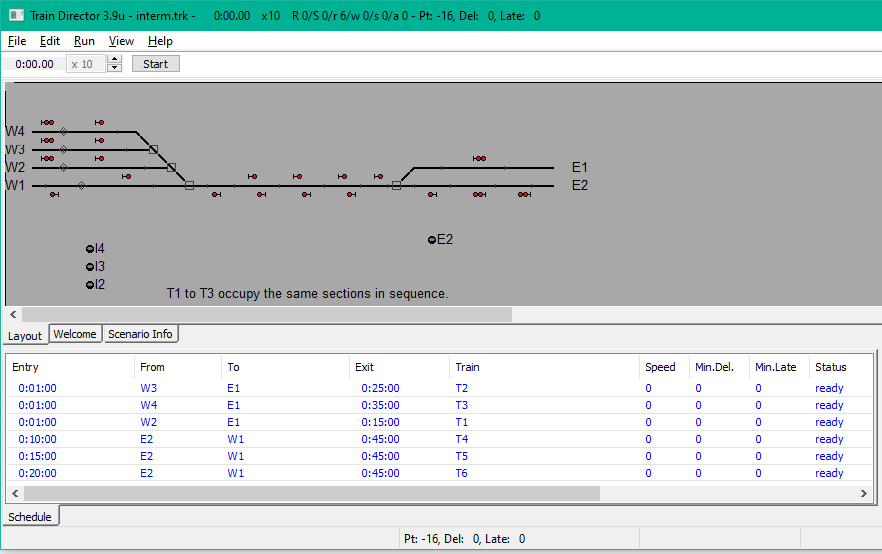
Let's open the "interm.trk" scenario found in the "Examples" folder. The scenario shows the following layout:
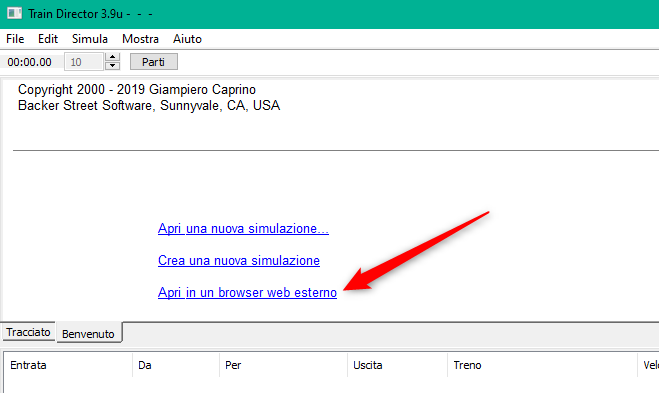
After having opened the scenario, let's go back to the initial page and let's open the web interface by clicking on the link shown:
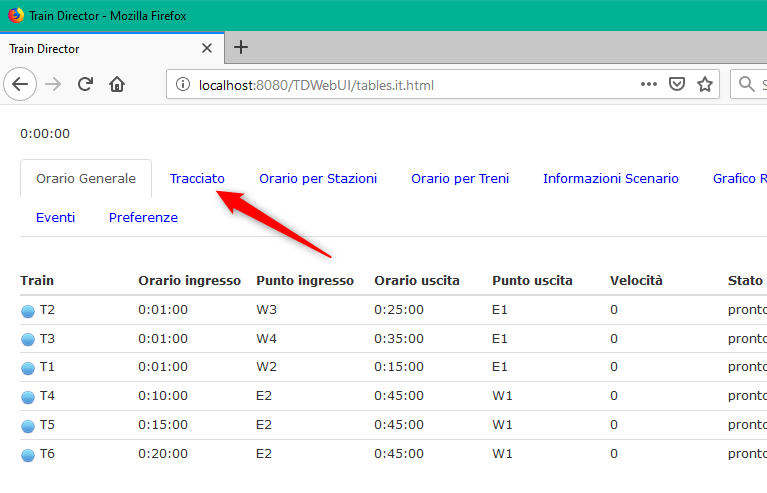
followed by the selection of the desired interface. In this example, we'll use the single-window interface. The browser will show the trains' timetable. Since we are interested controlling the simulation, let's open the layout tab:
To show how simple it is to use the HTTP interface, let's open a new browser window, so that we can send commands directly from the address field of the browser. In the following picture we use the "/war/do?" request to send a command to Train Director:
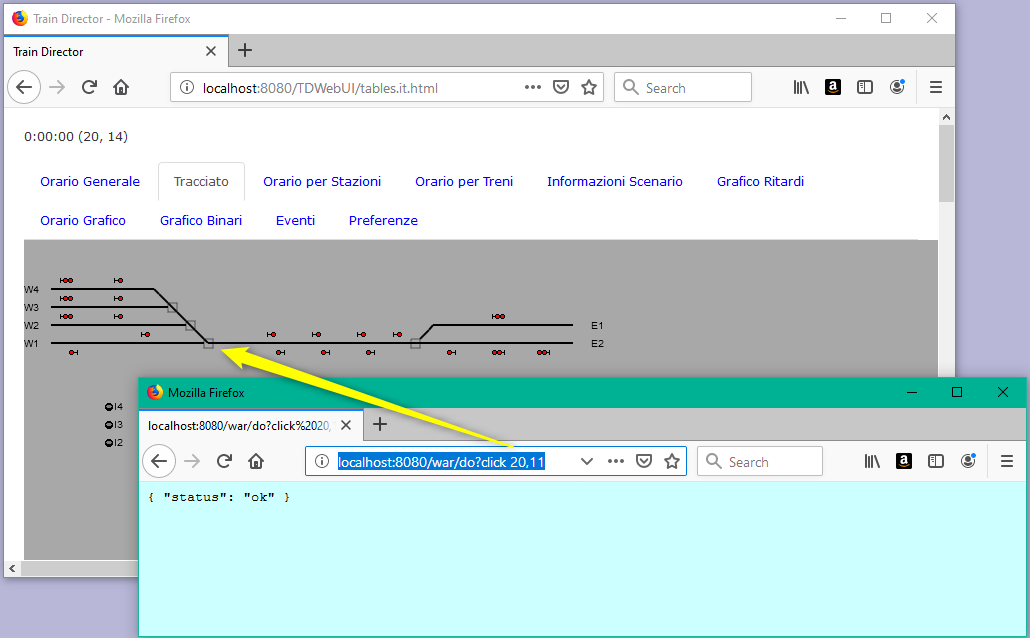
Refresh the page several times, to see how each time the state of the switch at coordinates 20,11 changes.
With the "/war/do" command it is possible to send all the commands available from the internal scripts, as described in the scripts page, which means that you can interact with trains, signals, itineraries, etc. For example, try to enter the following URL in the browser to select the E2 itinerary:
http://localhost:8080/war/do?itinerary%20E2
The web server allows you to retrieve the state of the simulation. For example it is possible to retrieve the trains' timetable. Enter the following address in the browser to get the timetable in JSON format:
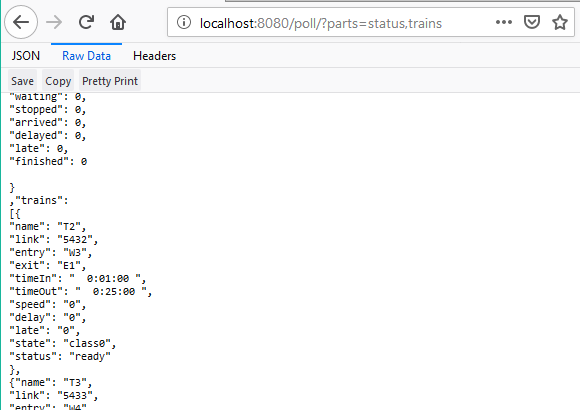
What we described is probably the most common use: retrieve information from the simulator and utilize the data in JSON format to act on the simulation.
There are many other HTTP requests possible. In time I will describe them in more details. In the meantine, what I described above should be sufficient to allow control of the simulator.
This new feature opens up new possible use cases, such as:
- To control Train Director from a physical control bench. Indeed, this has been the main reason why I implemented this feature, since some user had expressed interest in building their own control bench (of course at the amateurial stage).
- to connect 2 or more simulators to control a scenario by more than one person. Although this requires the use of an additional program to distribute the various events to the connected programs, this is now possible without having to change the Train Director sources.
- It may be possible to automate a simulation simply by recording all the events as the user proceeds in the simulation, and then to send them back to Train Director through the server interface.
- it is now possible to use other programming languages to interact with Train Director, such as perl, python, Visual Basic or C#. It is not necessary anymore to learn C or C++ and to know the intricacies of the Train Director sources (part of which have been written almost 20 years ago!!!).
This page is maintained by g_caprino@gmail.com
(Remove the _ before sending the message.)
Created on: July 31, 2019